
Terminals and TUI
A terminal belongs to its daemon, not to the TUI window attached to it. You can close a client, switch devices, and later resume the same process as long as the daemon and terminal remain available.
Lifecycle
Create and attach in one command:
anytty terminal create --name workspace --attach -- zshcreate also accepts a working directory, environment entries, initial columns and rows, and repeatable tags. Commands run after --; on Windows use an installed shell such as pwsh.exe.
anytty terminal list
anytty terminal show TERMINAL
anytty terminal rename TERMINAL new-name
anytty terminal tag TERMINAL project=docs
anytty terminal attach TERMINAL
The name and tags are organization metadata. The terminal’s stable ID remains the durable reference across renames.
kill stops the process while preserving its record and history. restart creates a new process generation from the daemon-owned specification. remove only removes an exited record and is separate from killing a running process.
Desktop workbench
Run anytty to open the TUI. Its workspaces, tabs, panels, and floating panels are client-side arrangements of daemon-owned terminals.
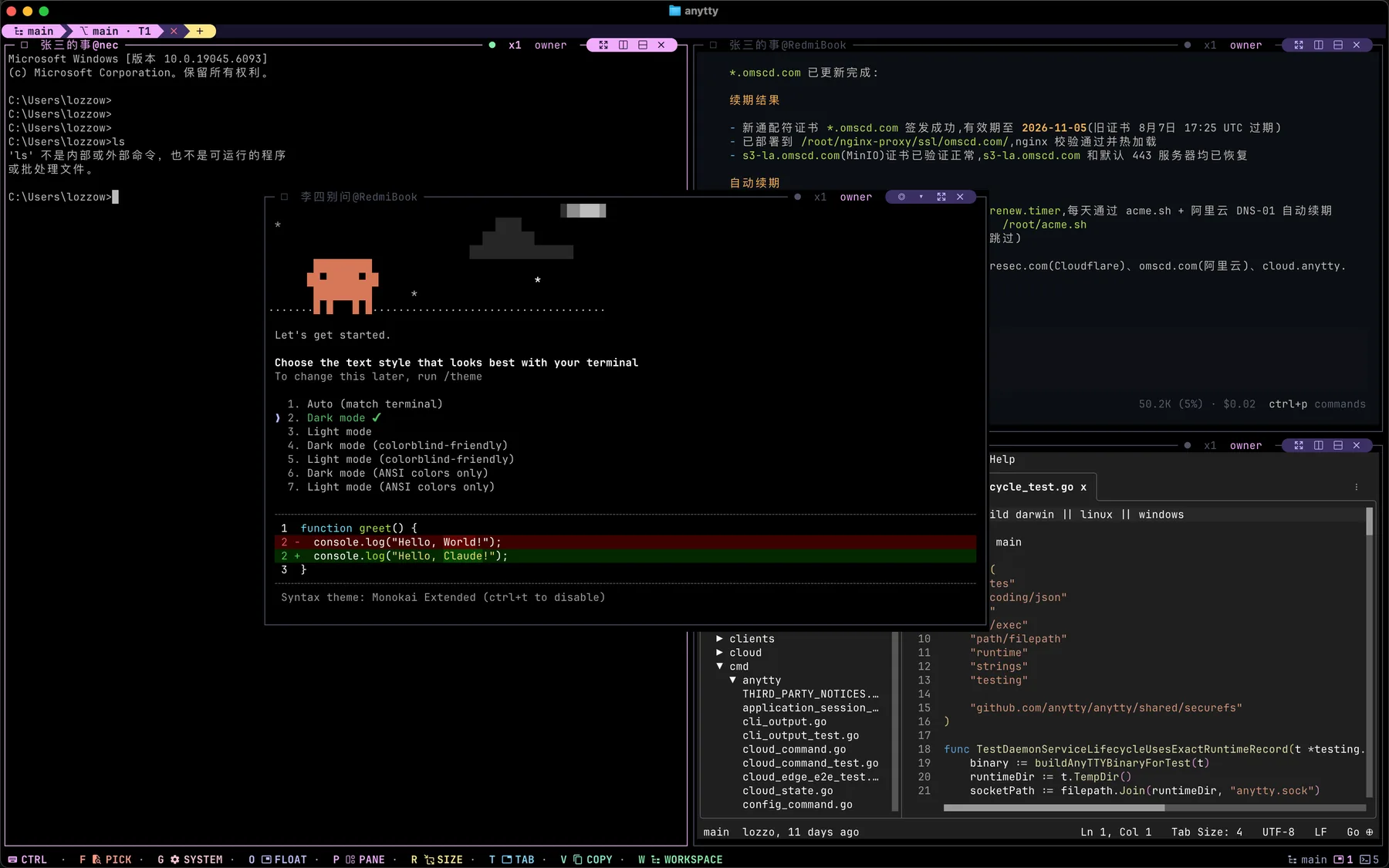
Default global entries are Ctrl-P panels, Ctrl-R resize, Ctrl-G system, Ctrl-O floating panels, Ctrl-T tabs, Ctrl-W workspaces, Ctrl-F terminal picker, and Ctrl-V copy/history. TUI help and the active configuration are authoritative after customization.
Closing a panel or workspace removes a view, not necessarily the process. Destructive actions require confirmation by default.
Picker and recent activity
The terminal picker searches available sessions and exposes state and recent activity for navigation. Do not infer process health solely from the latest visible output; use terminal show, events, or wait for lifecycle truth.
Live, history, and copy
Live follows the current native screen and PTY data. Copy/history opens an authoritative frozen history window. New Live output continues to be written by the daemon but does not shift the window under review.
anytty terminal capture TERMINAL
anytty history search TERMINAL PATTERN
History search supports literal text, glob, and RE2 regular expressions with context. Retention is bounded by policy and disk, so important applications still need their own logs.
Automation
anytty terminal send TERMINAL --literal 'status' --enter
anytty terminal events --json
anytty terminal wait TERMINAL --state exited
send can also use named keys, hexadecimal bytes, or stdin. stream reads exact Live PTY bytes. For scripts, prefer structured output and stable IDs; avoid parsing TUI text or English error sentences.
Claude Code, Codex, and OpenCode can also run as durable daemon-owned processes. See AI agent workflows for the bundled skill, observation and takeover patterns, and the current visibility boundary.
Multiple clients and resize
Several authorized clients can observe one terminal. Resize is owner-authorized so one viewport does not silently reshape another workflow. If the displayed extent differs from the current panel, the UI reports the difference rather than inventing terminal content.
Capacity and continuity
The default per-terminal generation output buffer is 32 MiB and the daemon-wide resident budget is 512 MiB. Default overflow behavior is block, preserving continuity by applying backpressure. drop emits explicit gaps and should only be selected after workload testing. See Configuration and operations.