Mobile and tablet
The mobile app is an explicitly paired AnyTTY client. It does not discover authorized daemons merely because the user signed in to Cloud. Each installation receives its own client-bound grant.
Availability
Android is available as a Beta APK; the current release APK is unsigned. iOS/iPadOS requires iOS 15 or later and is currently available from source while public packaging is prepared.
Add a device
- Start the daemon on the host.
- Run
anytty pair create. - Scan the QR code or paste the text claim in the app.
- Verify the daemon identity and requested scope.
- Confirm that terminal and file access are no broader than intended.
Claims are short-lived and one-time. See Pairing and access for TTL, scope, and revocation.
Terminal list and activity
The Devices page shows endpoints saved by this app and their connection route. Add Device is available from the top-right scanner action; Cloud sign-in does not insert unpaired endpoints into this list.
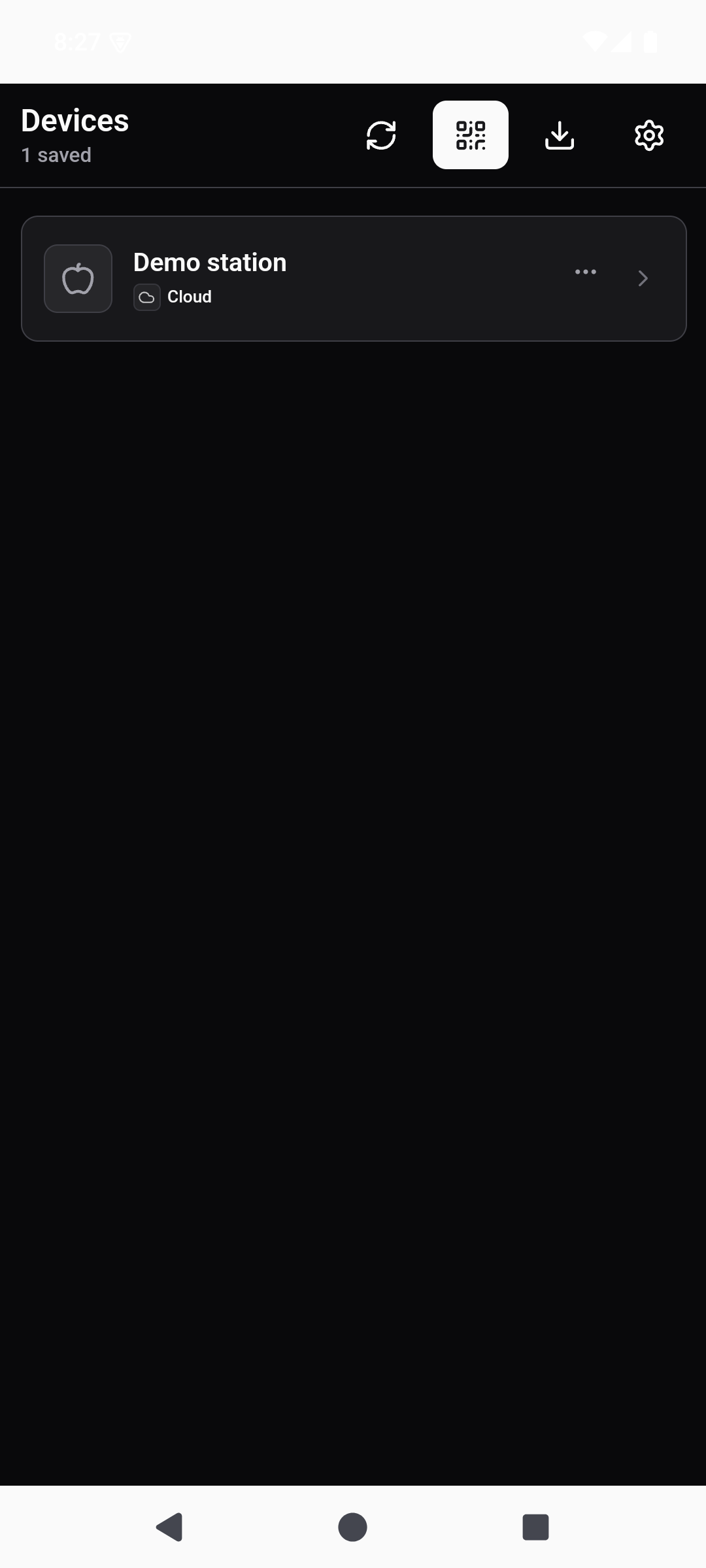
After opening an endpoint, names and tags help navigate its terminal list, while stable terminal IDs remain the durable identity. Closing the app or leaving a terminal does not kill the underlying process.
Touch terminal
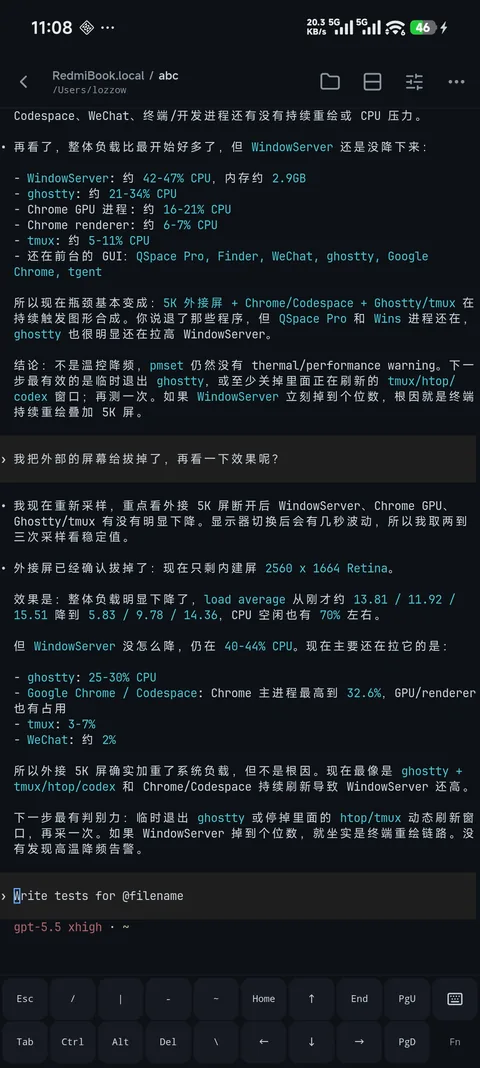
Use the extended key row for keys that are awkward on a software keyboard. Input-method behavior still depends on the operating system and active keyboard. Before sending destructive commands, confirm the endpoint, terminal, and focus target.
Backgrounding and reconnection
The app may lose its transport when suspended or when Wi-Fi and cellular networks change. On return it reconnects through the configured endpoint policy and resynchronizes terminal state. A reconnect does not recreate or restart the process unless the user explicitly requests a restart.
Live output and history remain distinct. If the live stream has a gap, the client requests an authoritative resync; history remains daemon-owned and subject to retention limits.
Multiple clients
Desktop and mobile clients can view the same daemon-owned terminal. Resize ownership and active input should be treated deliberately: a phone-sized viewport should not unexpectedly resize a desktop workflow. Revoke each lost or retired device separately with anytty access revoke.
Tablet workflows
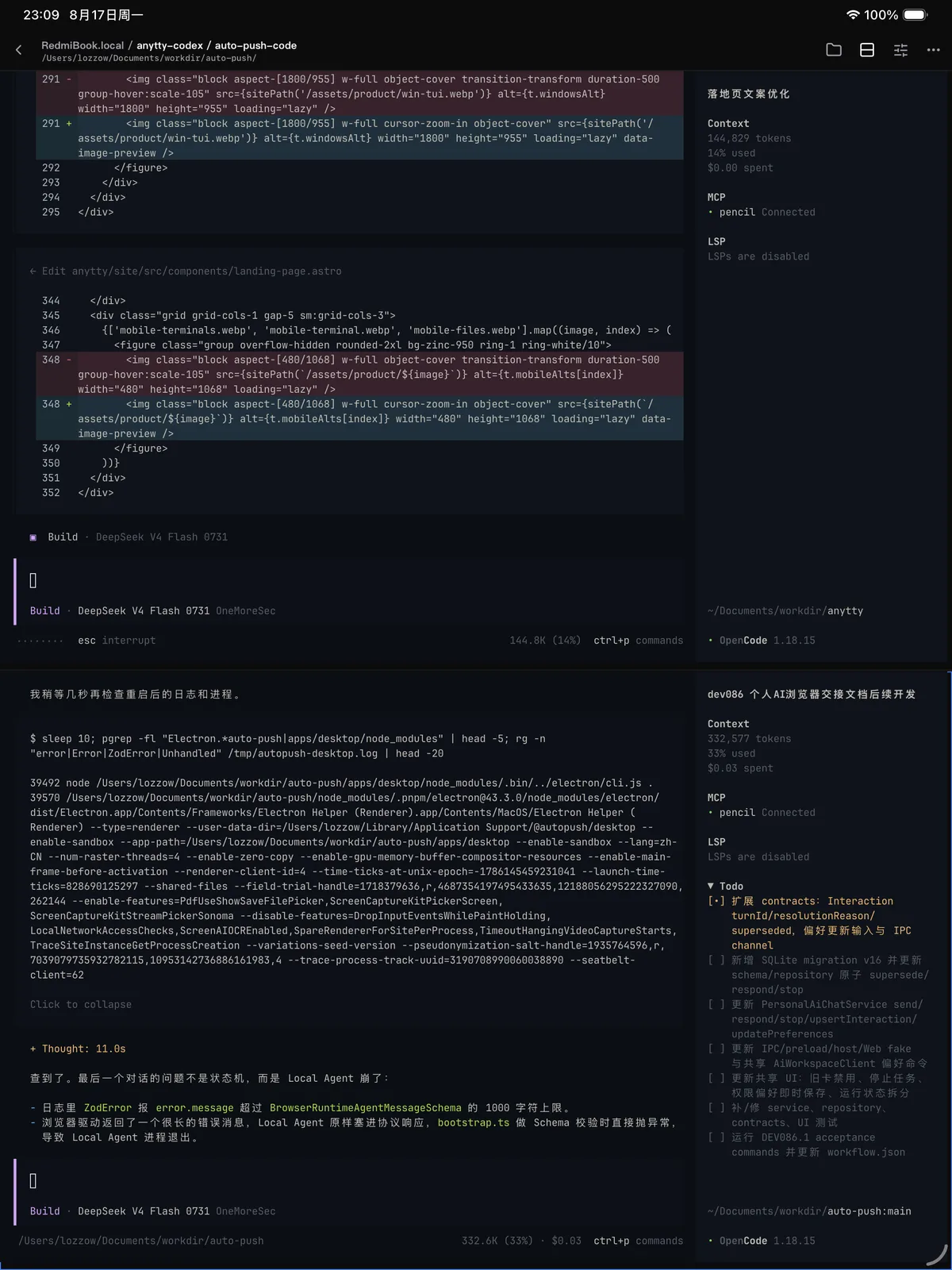
Tablet split view is useful for a terminal beside documentation, an editor, or another terminal. Layout state is a client concern; it does not duplicate the process.
Files and preview
The mobile file browser only exposes paths allowed by the daemon’s file policy and the client’s grant. It supports native selection, resumable download behavior, and SHA-256 verification. Available previews include text, documents, images, media, and supported 3D formats. See Files and preview.
Device security
The app stores credentials using platform-protected storage. iOS uses Keychain and uses Secure Enclave for SSH signing keys where available, with a Keychain fallback in environments such as the simulator. Device lock, OS updates, backups, and screenshots remain the user’s responsibility.