
On this page
Your first mobile connection
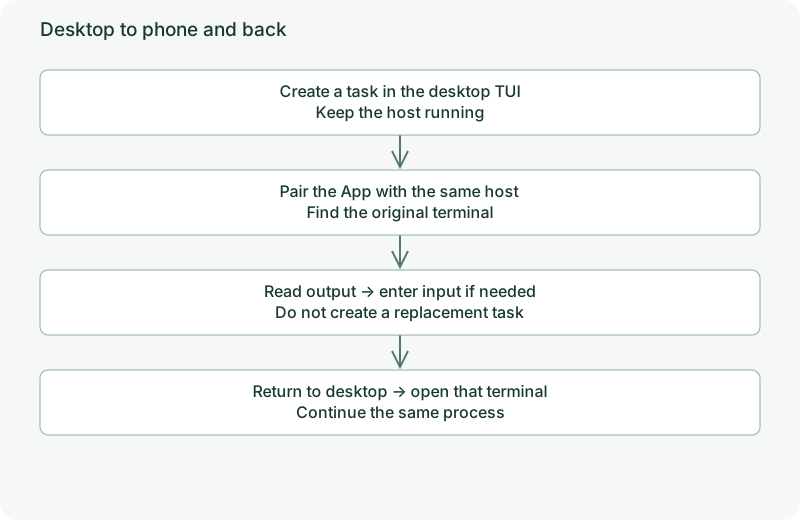
Open a terminal already running on your computer from your phone. First run anytty on the computer and create a recognizable terminal, then install the App on your phone.
1. Choose a network route
For a reachable LAN address, prepare a listener and invitation using the Direct guide. Use the SSH guide if SSH access is available. Consider Cloud for cross-network access.
Opening AnyTTY locally does not prove phone reachability. 127.0.0.1 on a phone points to the phone, not your computer.
2. Create an invitation on the computer
Follow the route guide to run anytty pair create with reachable route information, producing a one-time QR code or text invitation. Invitation expiration and redeemed authorization lifetime are separate settings. Keep the complete invitation private.
3. Redeem it in the App
Open the device page and choose the pairing scanner, or use the pairing page’s text input. Check the target label and prompts, then complete pairing.
Locate scanning and pasting without exposing pairing material.
Capture instructions · app-pair
Show the scanner entry and paste panel; leave claims and QR codes blank or redacted.
Generate a new invitation if the previous one expired or was used. A new invitation alone will not fix an unreachable route.
4. Open the existing terminal
Select the paired device, open its terminal list and choose the terminal from your computer. In an idle shell, run a harmless check such as pwd and compare both views.
If the terminal is busy with a build or editor, inspect first. Do not send a shell command into an unrelated running program.
5. Check sizing and disconnection
On a narrow phone display, start as a follower and take size ownership only when needed. Closing the App leaves the computer’s daemon responsible for its tasks; phone background connectivity is subject to OS limits.
Continue with App devices, terminal sizing and revoking access.