
Workspaces, tabs and splits
Use workspaces for projects, tabs for related views and splits for simultaneous observation. Group tasks first, then arrange their views.
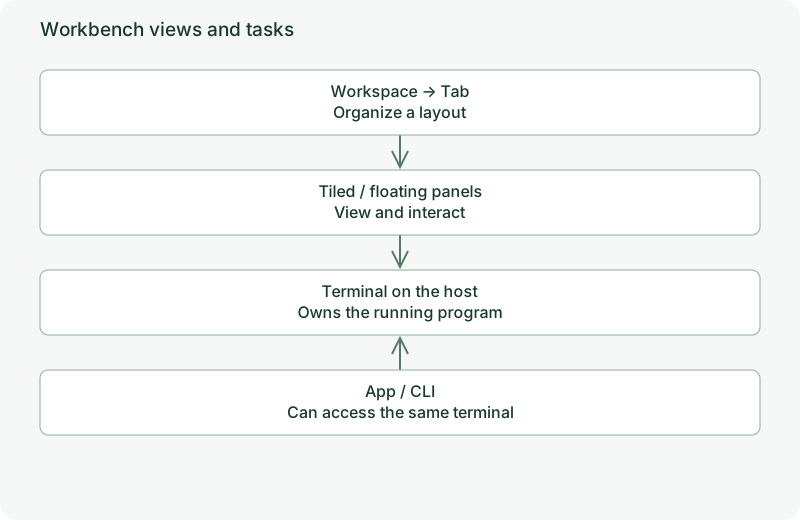
Example project layout
Create a demo workspace with develop and checks tabs. Place an editor beside service logs in develop, and tests in checks. Names such as demo-editor, demo-server and demo-tests remain recognizable from mobile and CLI clients.
Workspaces and tabs
Built-in workspace mode starts with Ctrl+W: c create, n / p switch, r rename, x delete. Tab mode starts with Ctrl+T: c create, n / p switch, number keys jump, r rename, x close. Follow your footer for loaded bindings.
Open the workbench tree with Ctrl+G → w. Built-in tree actions are Enter open, Ctrl+N create, Ctrl+R rename, Ctrl+X delete, Ctrl+D detach and Ctrl+Z zoom.
Splits and focus
In panel mode (Ctrl+P), built-in % or Ctrl+D splits right; " or Ctrl+E splits down. The picker also opens a selected task in a split with Tab.
Use panel direction actions to change focus, z to zoom temporarily and b to balance. Enter Ctrl+R resize mode to adjust dividers according to the current hints.
Show that arranging or collapsing a view does not stop its task.
Capture instructions · tui-layout
Show two tiled terminals and an open floating log view, then the collapsed float.
Persistence
AnyTTY saves layouts through workbench storage, not theme YAML. tui.chrome.panel_presentation changes the visual treatment between split-line and card; it does not recreate tasks or change their identities.
Read confirmations when removing workspaces or tabs. Distinguish layout cleanup from ending tasks, and check the manager for remaining processes afterward.